JULY 23, 2026
Best Photo Editing Software for Beginners (2026)
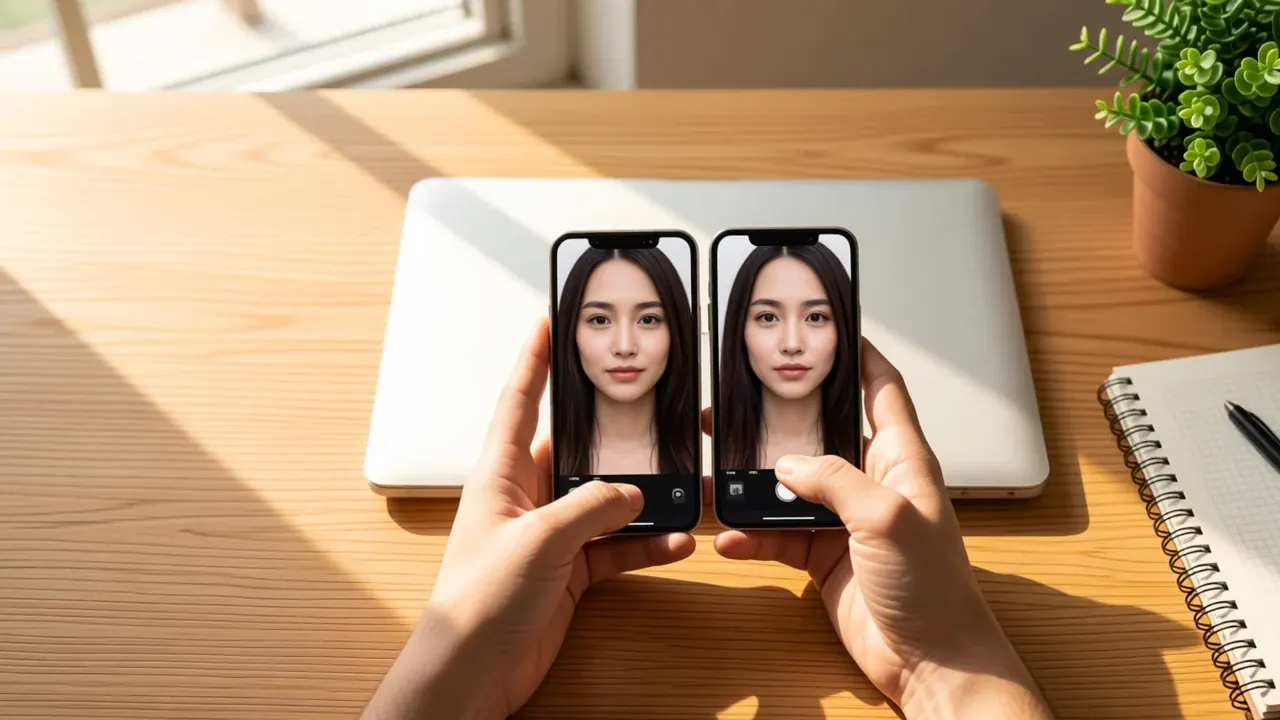
Looking for the best photo editing software for beginners — something you can pick up in 5 minutes? This guide shows how Vibe Photos handles everyday edits with plain-English prompts, plus real before/after examples for beauty, ecommerce, cleanup, and multi-image scenes.
Bottom line up front: If you want to improve photos you already have — better light, cleaner backgrounds, simple wardrobe fixes — without learning Photoshop, Vibe Photos Image Edit is a strong place to begin. The examples below use the same prompts and before/after results from the live workbench.
Photoshop is still the most powerful editor in the room. It is also the wrong first tool for most beginners. People shopping for good photo editing software for beginners usually need one finished photo this week — not a career in layers and masks.
A better first question is practical: can you finish lighting cleanup, a wardrobe tweak, or a cleaner background in about 15 minutes — and still recognize yourself (or your product) in the result? That is the bar this guide uses.
What beginners should look for
Easy photo editing software is not the one with the longest feature list. It is the one that gets you from “this photo is almost good” to “I would post this” without a tutorial rabbit hole. In practice that means: a short path to a finished image, forgiving undo, and results that still look like you (or your product) — not a plastic filter.
Photoshop remains the most powerful editor in the room. It is also the wrong first tool for most beginners. If your job this week is a better selfie, a cleaner product shot, or a less messy background, start with an AI photo editor that understands plain English — whether you think of it as software, an app, or a photo editing program.
Vibe Photos — our top pick for beginners
Editor’s pick · AI photo editor
Best when you already have a photo and can describe the fix in one sentence.
Vibe Photos Image Edit is built around a beginner mental model: upload → type what you want → review. No layers, no Lightroom catalog, no Photoshop toolbar. That is why it works well for people who bounced off traditional software but still need real edits — beauty polish, outfit tweaks, ecommerce cleanup, and everyday social photos.
Below are common beginner scenarios with the same before/after demos and prompts used on the live site. Copy a prompt, swap details for your photo, and run it in the workbench.
Example edits: prompts + before/after
We kept this to everyday jobs — not a random tool dump. You’ll see single-photo edits (beauty, outfit, ecommerce, cleanup) plus two multi-image Image Edit examples (upload 2–3 references, then describe the combined scene).
1. Creative beauty — casual dinner photo → Dunhuang desert shoot
Beginners often want a full scene restyle from one clear face photo. Upload the portrait, describe the location and mood, and keep identity locked.
Scenario: restaurant portrait → Dunhuang desert editorial
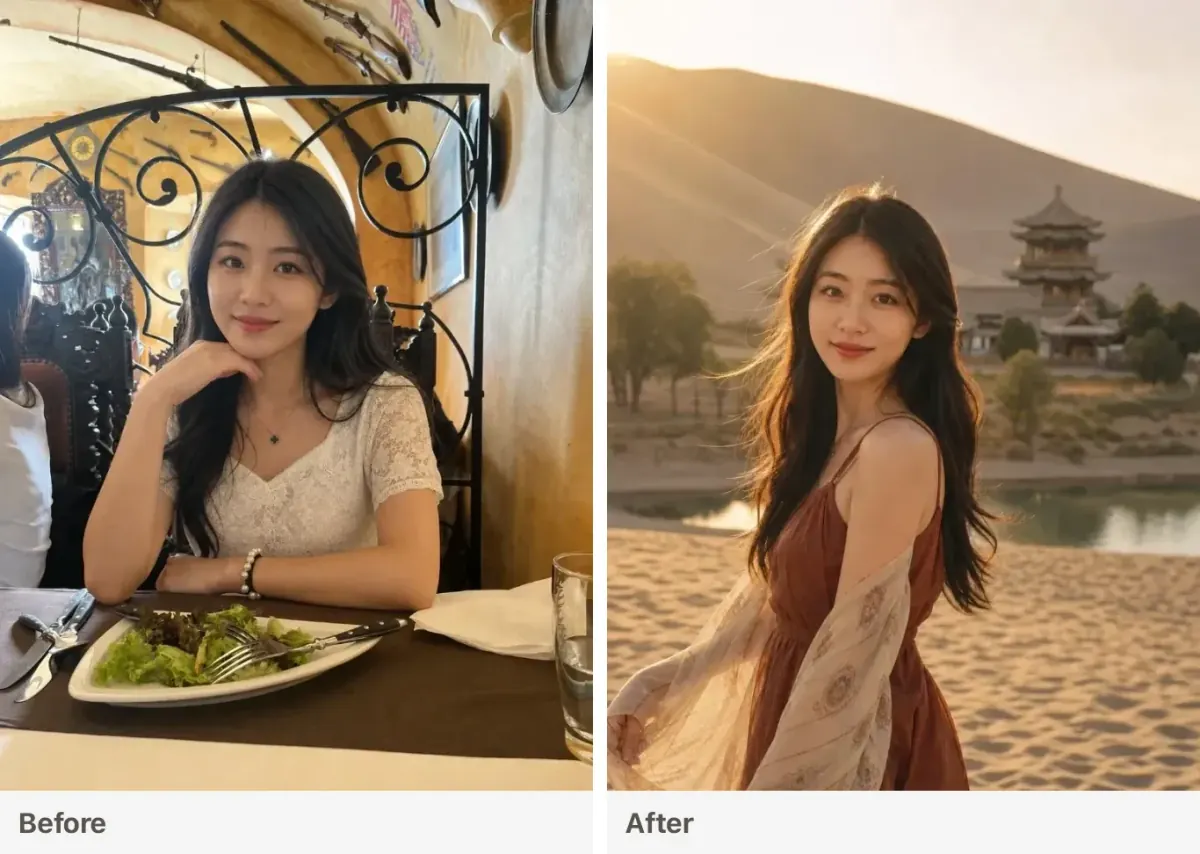
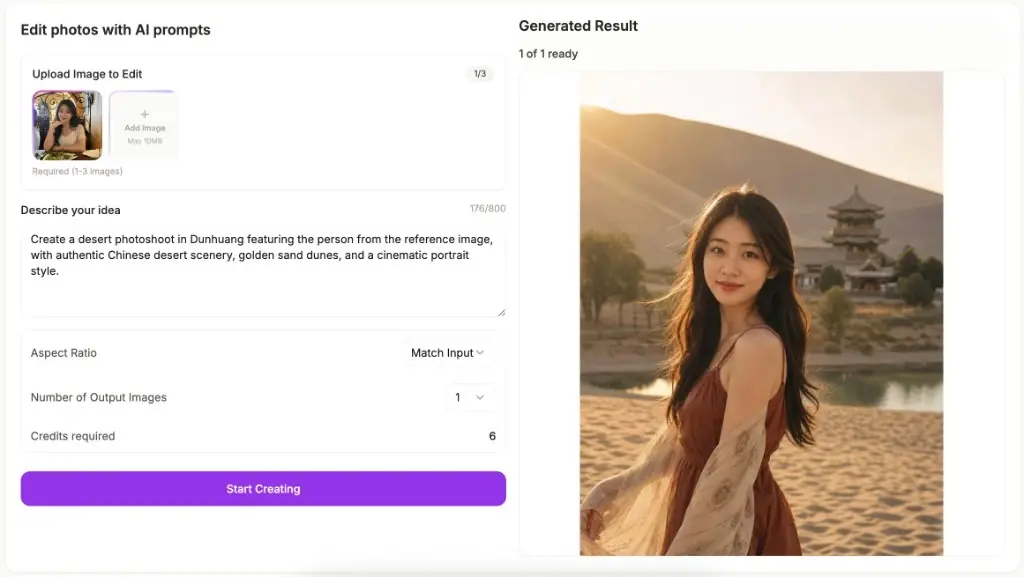
Prompt: Create a desert photoshoot in Dunhuang featuring the person from the reference image, with authentic Chinese desert scenery, golden sand dunes, and a cinematic portrait style.
Try Vibe Photos Image Edit now — upload a photo, paste a prompt, and generate your own version.
2. Lifestyle luxury — casual dinner photo → Dubai yacht scene
Same reference portrait, different prompt: restyle the outfit and move the person into a full lifestyle scene. Useful for social posts, lookbooks, or “dream vacation” edits without a new shoot.
Scenario: restaurant portrait → Dubai Marina yacht editorial
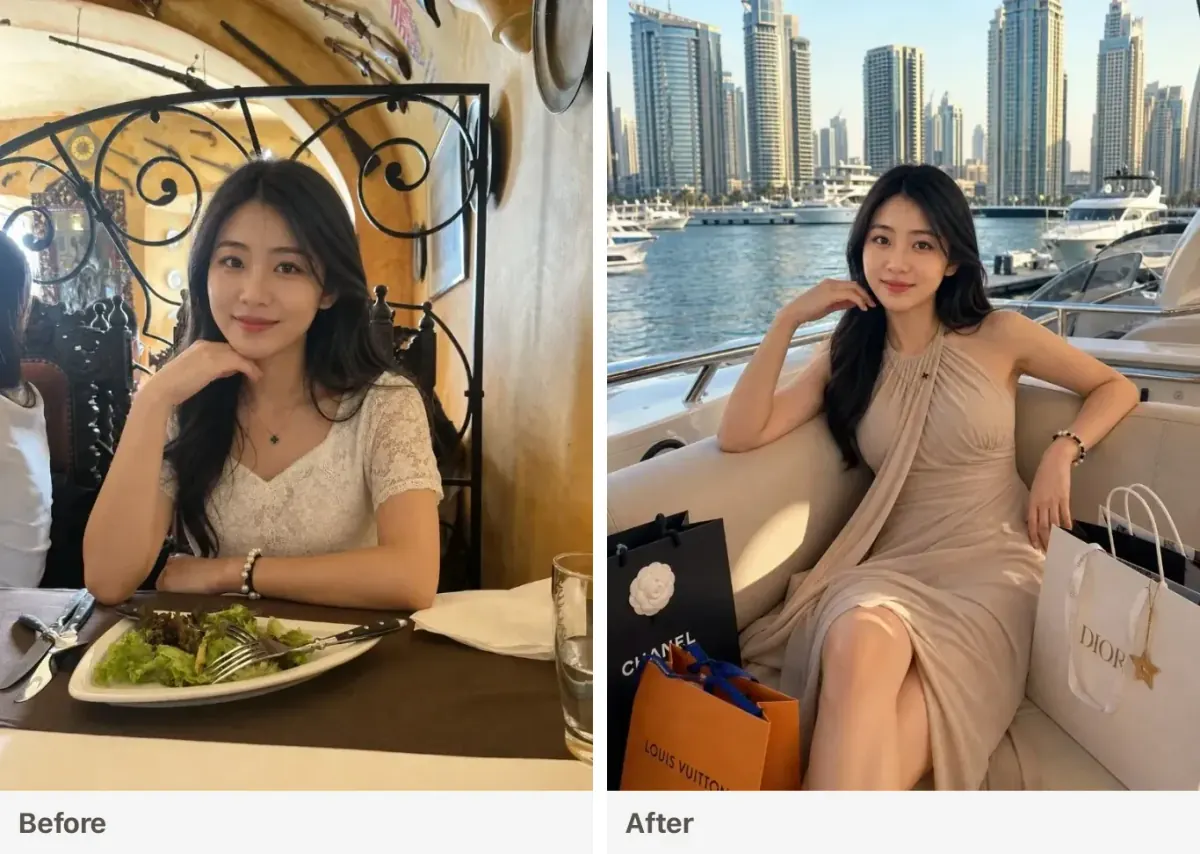
Prompt: beautiful model lounging on a yacht in Dubai Marina in a designer outfit with shopping bags around her
Try Vibe Photos Image Edit now — reuse one selfie with same scene prompt.
3. Ecommerce — Image Edit a product photo into a catalog shot
This is Image Edit (upload a real product photo), not text-to-image. Sellers usually start with a phone shot on a desk or table. Open Vibe Photos Image Edit, upload that photo, and describe a clean commercial scene while locking the product shape and label.
Scenario A: skincare bottle — desk photo → marble catalog look
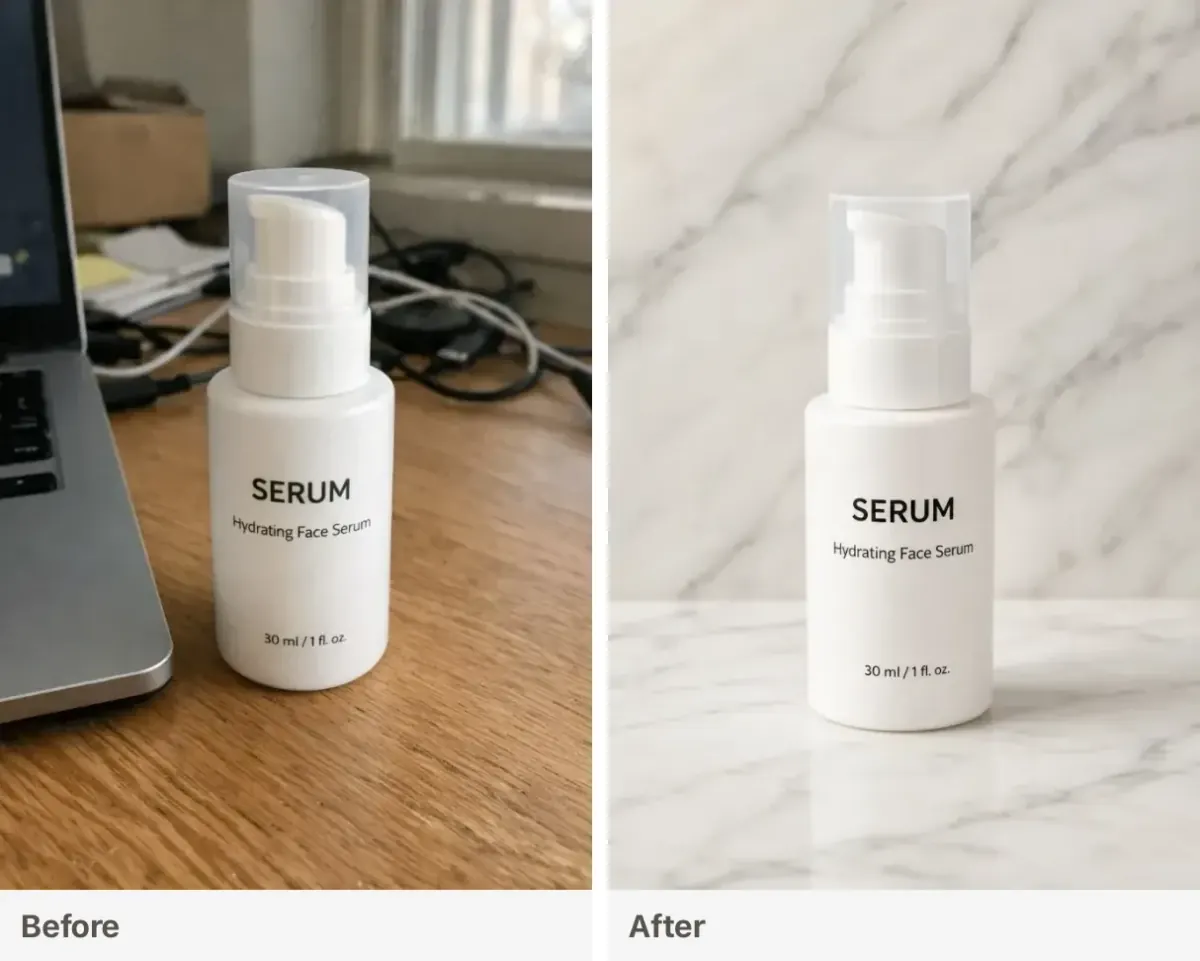
Prompt: Place this product on a light marble surface with a matching marble backdrop, soft studio lighting, commercial skincare photography. Keep the bottle shape, pump, and label text unchanged. Clean premium catalog look, no extra props.
Try Vibe Photos Image Edit now — turn a phone product shot into a catalog-ready image.
Scenario B: tech accessory — tabletop photo → white seamless hero
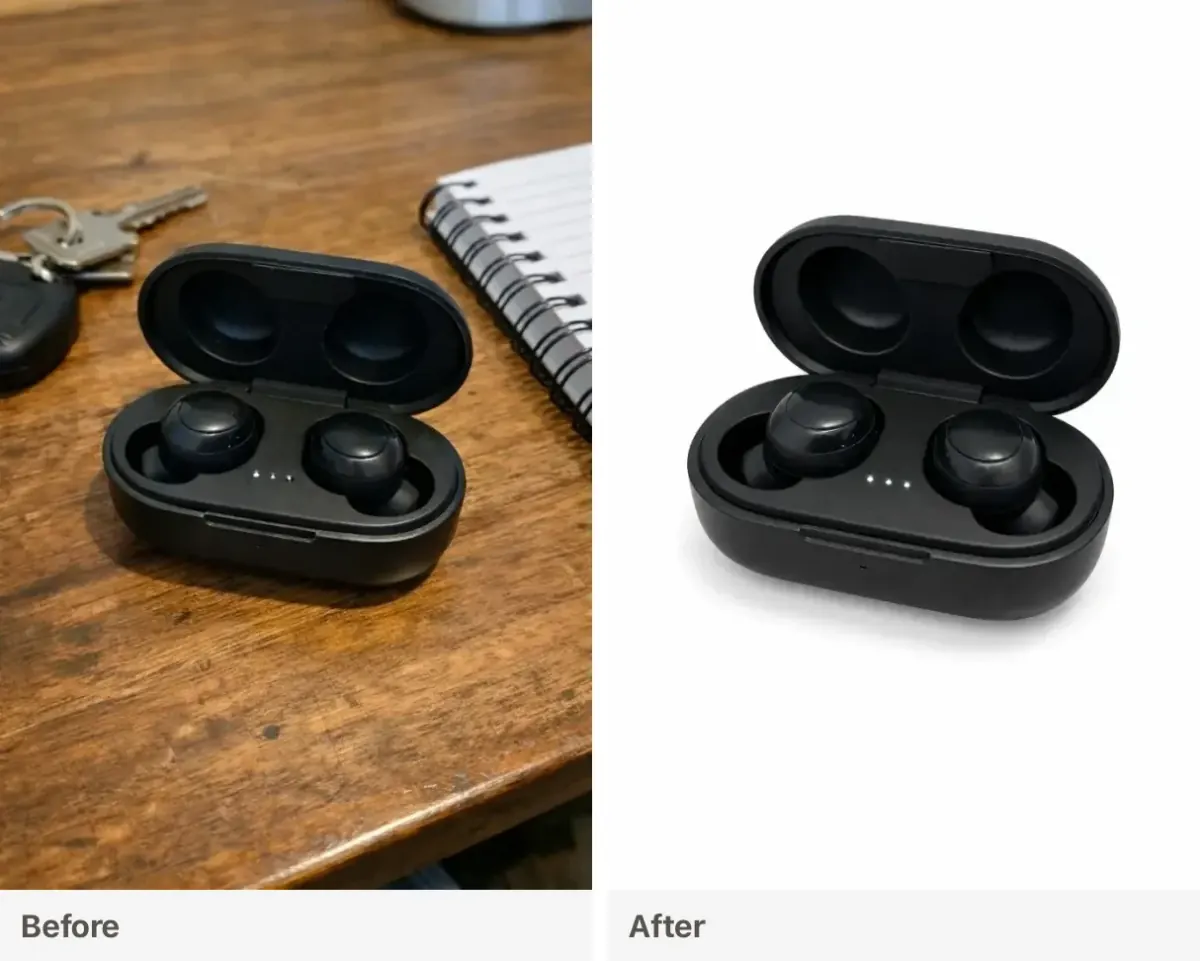
Prompt: Place the product on a clean white seamless studio background, soft even lighting, sharp edges, ecommerce catalog style. Keep the product design unchanged. No extra props, no hands, hero product shot.
Try Vibe Photos Image Edit now — clean up messy tabletop shots for ecommerce listings.
4. Everyday cleanup — declutter a busy background
Closets, cables, random objects — beginners waste hours masking. One cleanup prompt is usually enough for social or dating photos.
Scenario: remove clutter, keep the person
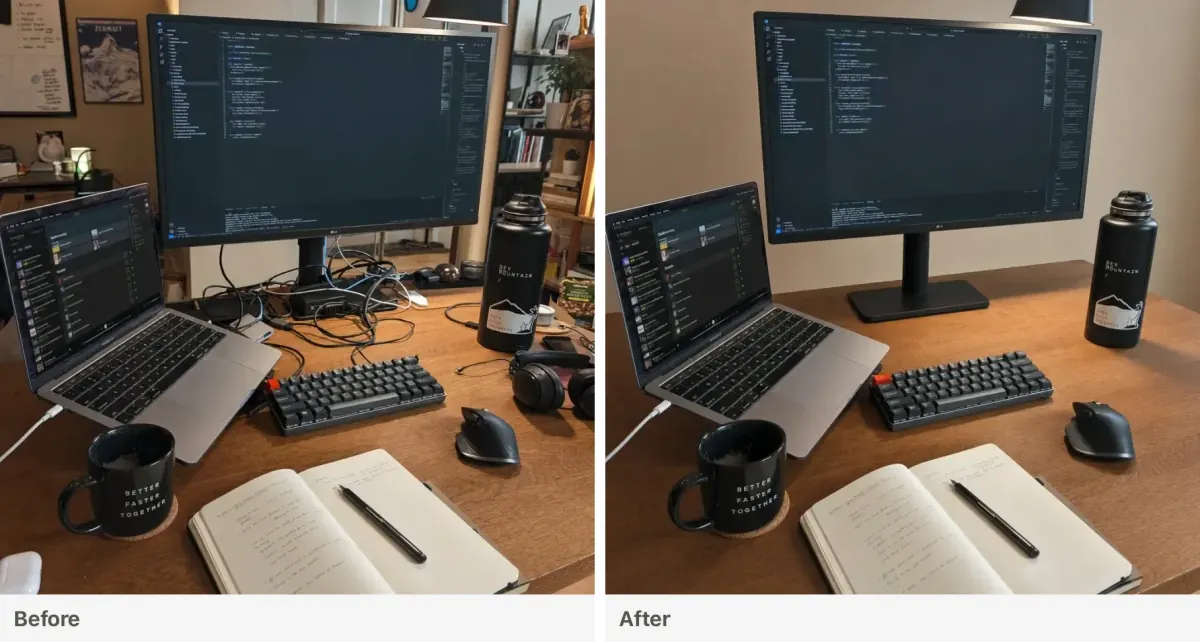
Prompt: Remove clutter and extra objects from the background. Keep the main subject unchanged.
Try Vibe Photos Image Edit now — clean a busy background in one prompt.
5. Multi-image — put two people in one lifestyle scene
Upload two portraits (and optionally a scene reference) in Image Edit, then describe how they should appear together. Temporary reference frames below are from the live multi-reference demo — replace with your own later if needed.
Scenario: two portraits → shared café terrace photo
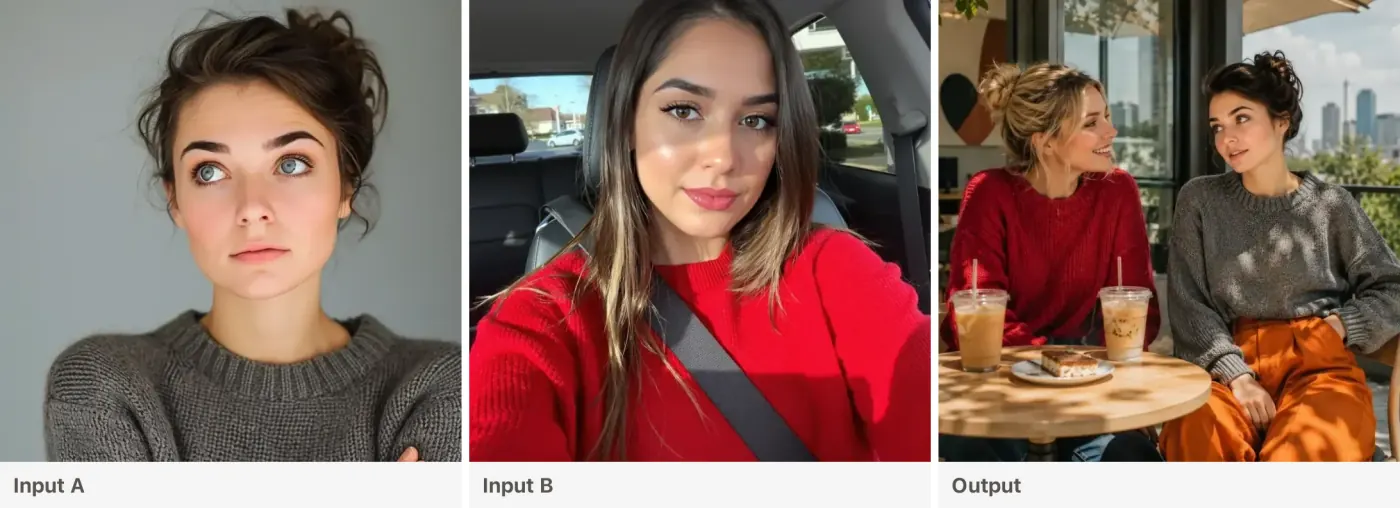
Prompt: On the terrace of a modern art café, two young women enjoy a leisurely afternoon — one in a red sweater, one in gray knit and orange wide-leg pants — with iced coffee and city views. Keep both face identities from the reference photos.
Try Vibe Photos Image Edit now — upload two portraits and place them in one scene.
6. Multi-image — couple / dual-portrait blend
Same idea for couples or friends who were never shot together: two clear face references → one shared dual portrait. Fast path also lives at AI Image Combiner; Image Edit is better when you also want a custom backdrop in the prompt.
Scenario: Portrait A + Portrait B → candlelit dinner couple photo
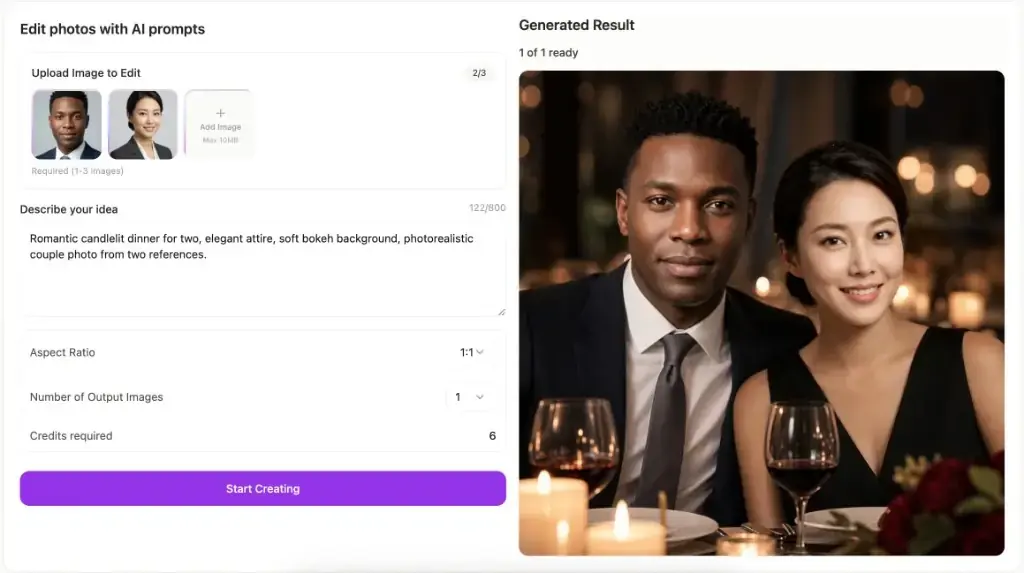
Prompt: Romantic candlelit dinner for two, elegant attire, soft bokeh background, photorealistic couple photo from two references.
Try Vibe Photos Image Edit now — upload two portraits and generate a shared scene.
How to run any of these in 5 minutes
- Open Vibe Photos Image Edit. new accounts include free credits. Same workbench as the demos above.
- Upload a clear photo — or 2–3 references for multi-image scenes.
- Paste a prompt above — change only the details that matter to your shot.
- Generate once, tweak the prompt if needed, download.
When you might still want another tool
Vibe Photos is our beginner pick for prompt-based photo edits. You may still keep Snapseed if you want free photo editing with classic sliders offline, Canva when the deliverable is a designed social graphic, or Lightroom if you are building a long-term RAW photography library. On phones, those remain some of the best photo editing apps for beginners for slider-style work — different jobs from a full scene rewrite, and not reasons to start in Photoshop on day one.
FAQ
What is the easiest photo editing software for beginners?
For finishing a photo quickly, Vibe Photos is often the easiest photo editor for beginners because you describe the edit instead of hunting tools. Snapseed remains the easiest free photo editing option on phones if you want classic sliders. “Easiest” depends on whether your job is a photo rewrite or a social layout.
Can beginners edit photos for ecommerce without Photoshop?
Yes. Upload a product photo to Image Edit and prompt a white seamless or marble studio scene while keeping the product and label unchanged. Photoshop is optional until you need pixel-level compositing or print pipelines.
What prompts work best for beauty photos?
Start simple: name the light and the limits — soft golden-hour or window light, keep identity, natural skin texture. Avoid vague “make me prettier,” which often over-smooths faces. Then run the prompt in Vibe Photos Image Edit and tweak one detail at a time.
Do beginners need Photoshop?
No. Photoshop is excellent for professionals who need it. For everyday photo improvement, starting there usually delays the first successful edit. Move up when you hit a real limit — advanced compositing, print workflows, or a team that lives in PSD files.
Wrapping up
If you just need a trustworthy edit from a phone photo — better light, a cleaner background, a product shot that looks list-ready, or a simple multi-person scene — Vibe Photos Image Edit is an easy place to start. Pick one prompt from this page, run it on your own photo, and see whether the result beats your current app.
Still want classic sliders or a design canvas? Keep Snapseed or Canva nearby. Ready for more volume later? See pricing.